Tarkov Navigator

Escape from Tarkov · A map in your browser

An interactive Tarkov map with your raid position

Tarkov Navigator shows your position on the map from an Escape from Tarkov screenshot. Extracts, quests, keys, loot and other markers are already in one place — nothing to download or install.

  • 13 maps
  • ~€4 per month for Pro
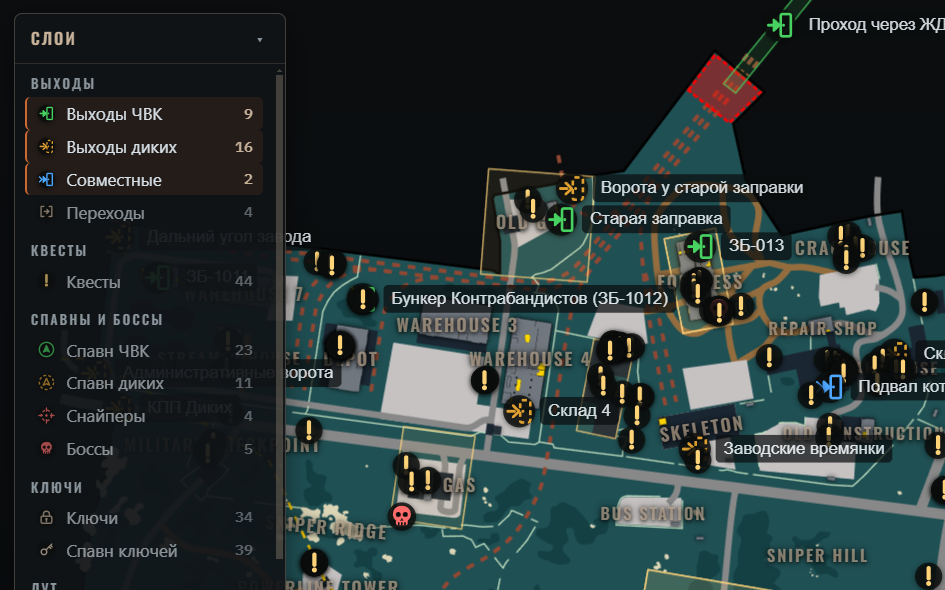
Interactive Customs map in Escape from Tarkov with extracts, key spawns and the player marker

Features

Everything you need to navigate a raid

The main feature

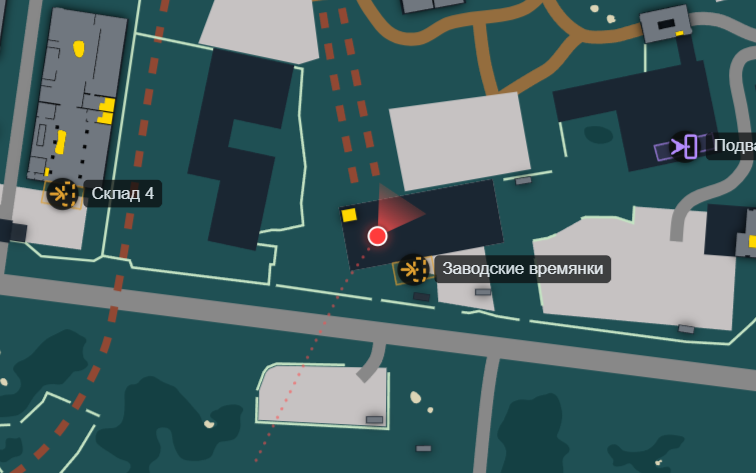
Your position on the map from a screenshot

Take a screenshot in Escape from Tarkov — Navigator reads the coordinates from its file name and places your dot on the map. Each new screenshot updates your position, floor and heading.

  • No need to open a map and search for yourself
  • The screenshot stays on your computer
  • Works across all maps and floors
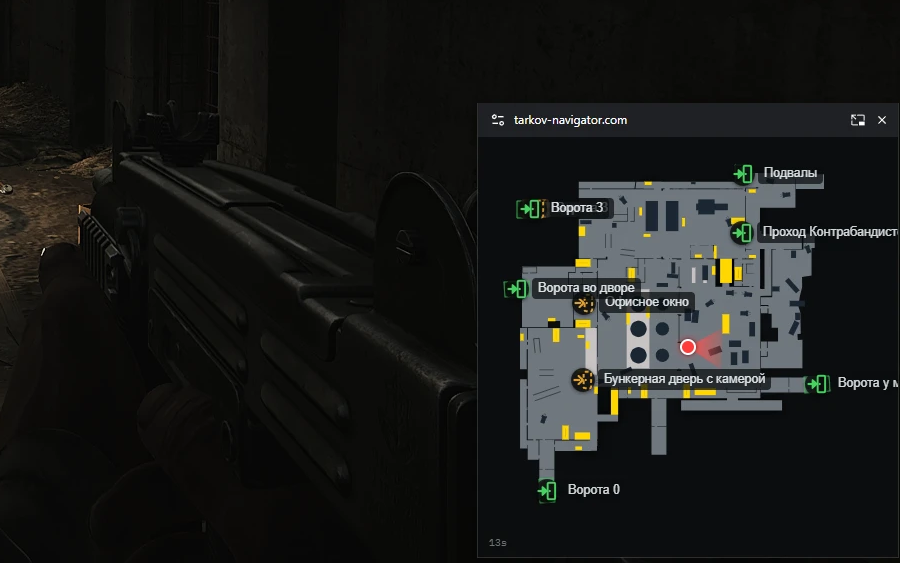
Player position on an interactive Customs map from an Escape from Tarkov screenshot
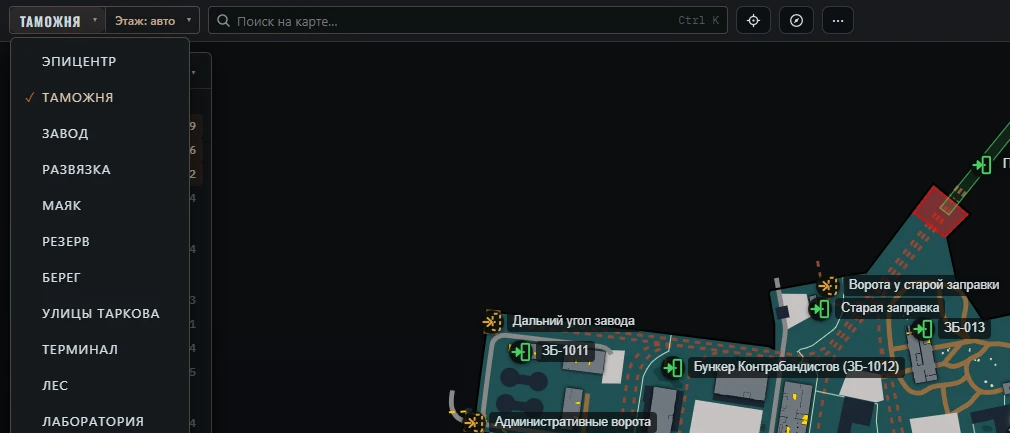
List of 13 Escape from Tarkov maps in Tarkov Navigator

13 Tarkov maps

Customs, Streets, Woods, Interchange, Shoreline, Reserve, Lighthouse, The Lab, Ground Zero, Factory, Terminal, Icebreaker and The Labyrinth — all 13 locations in one service. Open the map you need without juggling new tabs.

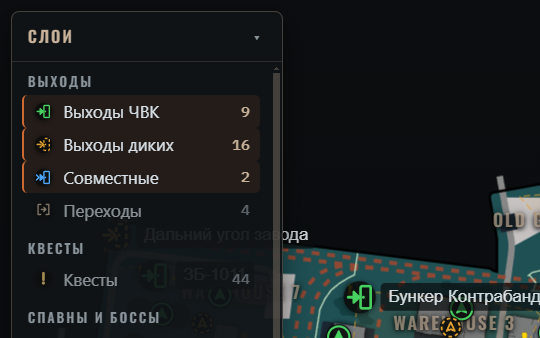
Map layer column: extracts by faction, spawns, bosses and danger zones

Layers for the task

Toggle extracts, quests, spawns, keys and loot separately. Keep only what you need for this raid so the map stays readable.

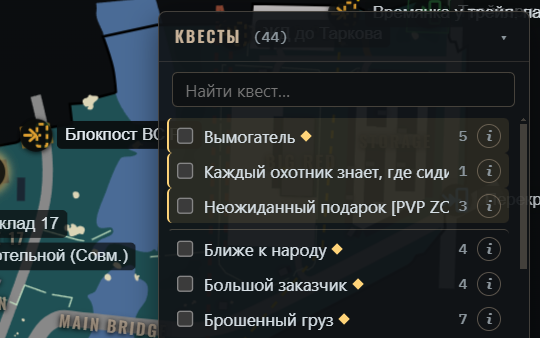
Quests on a Tarkov map with completed tasks marked and a task card open

Quest objectives on the map

Select your active tasks and keep their objectives in view. Mark completed steps so they do not get in the way next raid.

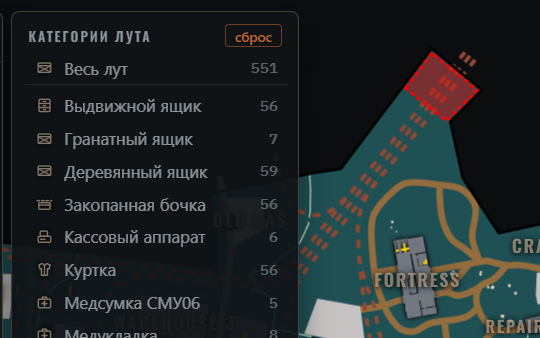
Loot on the map by category plus loose loot in Escape from Tarkov

Where to find loot

Containers, safes, weapon crates and loose loot are marked on the map. Looking for something specific? Turn on just that category.

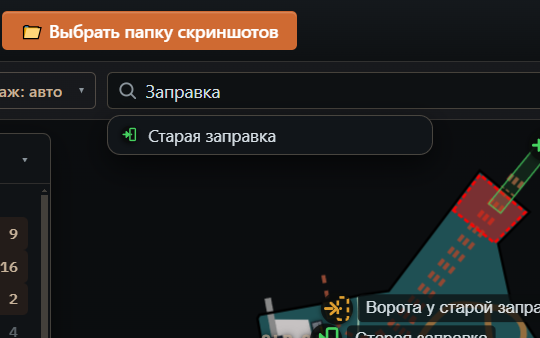
Search across Escape from Tarkov maps, quests, keys and loot

Search the map quickly

Find a key, quest, extract, area or item in one field. Choose a result and the map moves to the right spot.

How it works

Three steps to seeing your position

  1. 01

    Bind a screenshot key

    In Escape from Tarkov settings, bind a key to Screenshot — a side mouse button works well.

  2. 02

    Point us at your screenshots folder

    Select the game's screenshot folder once. Navigator reads the file name; it never opens or uploads the image itself.

  3. 03

    Take screenshots in raid

    The map updates your dot after each screenshot. Coordinates, floor and heading come from the file name the game creates.

Pro · ~€4 per month

What Pro unlocks

Every map gets facing, route trail, auto-floor, compass, pins, the in-game window and a second screen. The cap on active quests goes away too.

Facing and route trail

The cone on your dot shows where your character is facing. A trail keeps your recent route visible, so you can see where you came from and where you have been.

Automatic floor

Reach the second floor of dorms and the map changes level based on height. No need to open the floor list every time.

Compass with bearings

A strip with cardinal directions and your bearing at the top of the screen. Callouts get easier: “contact at 120” beats “somewhere right of dorms”.

Pins on the map

Right-click to drop a pin and see its distance. Your squad sees it too: mark loot, a meeting point or a dangerous angle without a long callout.

Playing as a party

Squad members see each other's positions and pins on one shared map. A Pro player creates the squad; everyone else can join by code for free.

The map on your phone or second monitor

Open the map by code on a phone or second monitor and your position updates there too. It is especially handy in fullscreen.

More than three active quests

On paid maps, Free can track up to three quests. With Pro, select as many active tasks as you take into a raid.

~€4 / mo

Manage or cancel your subscription through Boosty.

Subscribe on Boosty

Over the game

Keep the map beside the game

The ⧉ Over the game button opens a compact map window above Tarkov. Your position, quests and nearby extracts stay in view while you play.

The game needs Screen mode: Fullscreen Window — Settings → Graphics → Screen mode. On exclusive fullscreen the window will not appear over the game. The map on a second monitor or phone works with any settings.

  • Remembers the window's size and position
  • Alt+P opens and closes it when the browser or the window has focus
  • Inside it's the map only — no header, no panels, no extra buttons
  • Free on Customs and Interchange; on the other maps it needs Pro
Tarkov Navigator mini map window on top of Escape from Tarkov
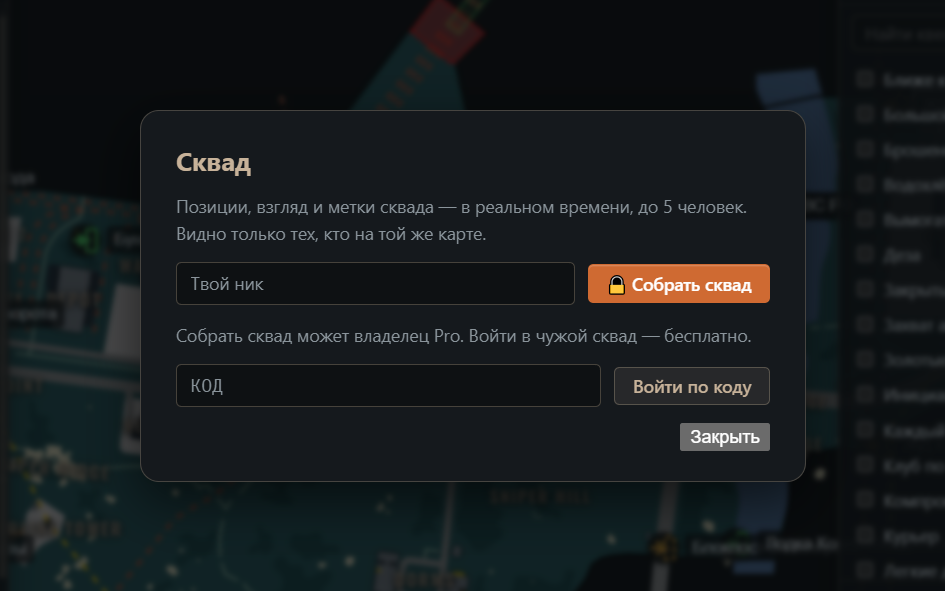
Friends' positions and squad pins on an Escape from Tarkov map

Squad

One subscription, one map for the squad

A Pro player creates a squad and shares its code. Positions and pins appear on one shared map for every member, even those on Free.

  • Up to five positions in real time
  • Shared pins for loot, routes and dangerous spots
  • Six-character squad code, no sign-up

Live demo

Paste a screenshot name and see how your position is found

This is how Navigator reads location data from a game screenshot. Parsing happens in your browser: the file goes nowhere and only its name is used.

Waiting for a file name
X
Z
Altitude
Heading
  • PMC extract
  • Scav extract
  • Shared
  • Transit
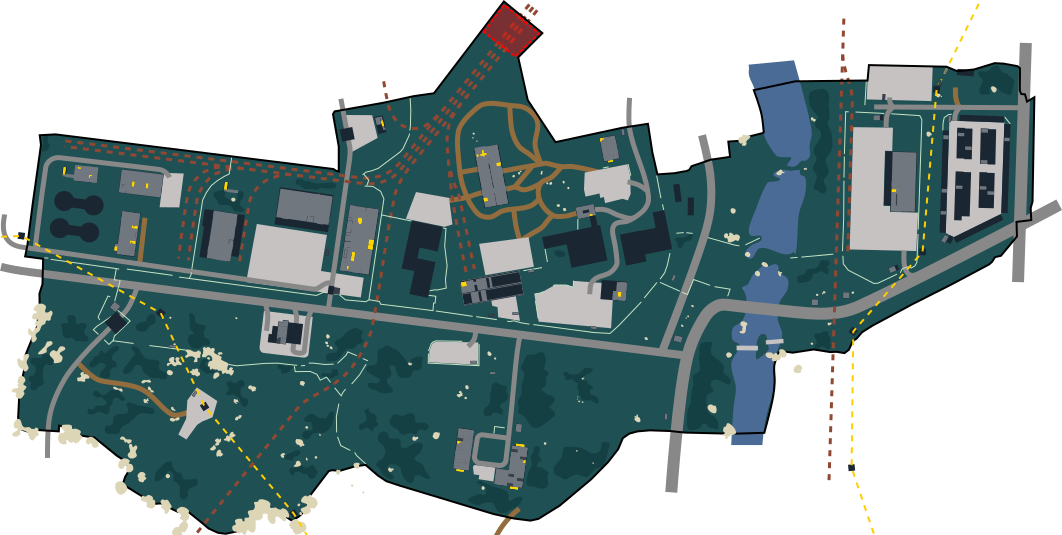
Customs map used to demo the player position from a screenshot name
Customs/ Computed locally

Safety and questions

How Navigator works with the game and your data

No game memory reads · No process injection · No input sent to the game

To locate you, it only reads the names of screenshot files the game writes to disk itself.

Can I get banned?

Navigator does not read game memory, inject into the game process or send input to it. It only parses the name of a screenshot that the game saves to disk. We cannot guarantee anti-cheat decisions, but the app does not use mechanics that interfere with the game.

Why do I have to press the screenshot key myself?

You press the screenshot key yourself. Navigator never uses automated input; once the screenshot exists, it updates the position from the new file name.

Does it work in fullscreen?

The overlay window needs Screen mode: Fullscreen Window in the game's graphics settings. On exclusive fullscreen the overlay won't show, but the map on a second monitor or phone works with any settings.

What's free?

All 13 maps, layers, search, screenshot-based position, the flea market and the Goons tracker are free with no time limit. Other maps allow up to three active quests; Customs and Interchange include every map feature without limits.

How do I cancel Pro?

Manage the subscription in your Boosty account. When the paid period ends, the account returns to Free and keeps all free features.

Where does my data go?

The screenshot name is parsed in your browser. Coordinates are sent to the server only when you enable squad, so its members can see your position.

Pricing

What's in Free and what's in Pro

Free

0 ₽

Free forever, no sign-up

  • All 13 maps
  • Extracts, spawns, bosses, danger zones
  • Search across maps, keys, quests and loot
  • Player position from a screenshot
  • Flea market, barters and the Goons tracker
  • Up to 3 active quests per map; unlimited on Customs and Interchange
  • Every map feature is free on Customs and Interchange
Open the map
Pro

~€4 / mo

Manage your subscription on Boosty

  • Player facing and route trail
  • Automatic floor selection by height
  • Compass with cardinal directions and bearings
  • Map pins — your squad sees them too
  • Map window on top of the game
  • The map on your phone or second monitor
  • Track more than 3 active quests on each map
  • Play as a party: each other's positions and pins
Subscribe on Boosty